Experiment 3
ChemDraw and Chem3D Assignment
Objectives
You will use the chemical structure drawing program ChemDraw
and molecular modeling counterpart Chem3D to draw and manipulate different
organic chemistry structures. Programs like these are used to draw
chemical structures included in your text books. These are typical drawing-type
programs that many of you might already be familiar with. How to draw chemical
structures, as well as doing various manipulations on them, is a technique both
students in the group must learn. You will eventually be tested on these
concepts.
The two days of this experiment will be turned in after things are completed on the second day. Both lab partners will be given the same grade, which typically is counted as a quiz. You should both participate fully in these exercises because you will be working independently later doing similar exercises.
Procedure
You will work on these parts with your lab partner. You may ask
questions of the instructor, and no one else (not a bad idea since others in the
lab probably know about as much as you do). After you are finished with the
assignment for each of the two days of the lab (you can only work on Day 1 parts
on the first day of this experiment. During the second day of this
exercise, you will do those part under Day 2. At the end of each day, you will print out only one copy
of your finished work. Both of your names must be on the first page, upper right
hand corner so that when it is handed in both will receive credit. Both partners will receive the same grade.
(If you need to find the structure for any of these compounds,
you can do several things:
- You can look them up in the CRC Handbook, the Merck Index, or any other
reference source, including your organic chemistry text.
- You
can also obtain structures online. The best way to get these structures is to do a search (e.g., on Google.com or using another search client). To do this, simply in the search box, using benzoic acid as an example, put "benzoic acid msds" and do the search.
- Ask your Instructor to assist you.
Parts I & II will be performed during the First Day of the lab for
this experiment. Parts III & IV will be performed
during the Second Day of the lab.
Hand
in all your work at the end of the second day in lab.
The
Desktop Computers on the side of the lab, and within the inner room will be used for this exercise.
We also have laptop PC's that you can also use at your bench. Be certain the wifi is on and set to "biotech" not the MiraCosta wifi. At the end of each day,
print a copy of the work you did during that day. If your computer does
not print, let the Instructor know. We can help with most problems.
- Day
1:
- Part
I: ChemDraw
- Part
II: Chem3D
- Day
2:
- Part
III: ChemDraw
- Part
IV: Chem3D
Remember that you can only do Parts I & II during the first day. Parts III & IV can only be started on Day 2.
Part I: ChemDraw
Use ChemDraw to draw the structure of each of these molecules and ions,
all on the same page. Label each structure.. Print one copy of the
entire page, after you have finished drawing everything. Make sure
nothing appears on the page except these drawings. Be sure to
type your name at the top right hand corner of the page.
-
2-butanol
- trans-3-bromocyclopentanol
-
1-(2,4,5-trimethylphenyl)ethanone
-
Benzoic acid
-
The benzoate ion (conjugate base of benzoic acid), showing all lone
pairs of electrons on the oxygen atoms and the position of the formal
negative charge
- cis-1-t-butyl-4-methylcyclohexane,
showing it in its most stable conformation (you must show a chair
conformation for the cyclohexane ring, with appropriate placement of
the axial and equatorial positions for the attached groups)
-
caffeine
Notes for ChemDraw:
-
When you start a compound, you must start with a bond, not a single
atom. For example, you cannot start a structure by putting a
text element, such as "C" (which represents carbon). If you
want to have a molecule, such as bromochlorofluoromethane, you must
first draw the bonds being attached to a single center atom (in this case it would be a carbon atom), and then label all
the atoms afterward.
-
You must also be certain to connect all atoms using the connection tool (a little black square
box will appear). If this connection tool does not appear, bonds or text will not be attached.
Part II: Chem3D
For each of the chemicals indicated below (1-iodopropane, cis-1-ethyl-2-methylcyclohexane,
and 1-(2,4,5-trimethylphenyl)ethanone) use ChemDraw to draw the
structure of the molecule and then copy this structure into Chem3D (if
you have questions about doing this transfer, ask your instructor).
Once you are in Chem3D, manipulate the model to give the
indicated conformation (you will need to manipulate the structure to
approximately the conformation indicated, and then use the "Minimize
Energy" function to get precisely the right conformation).
Unless otherwise specified, use the "Ball and Stick" Model
Type, with Atom Fill set to "Pattern by Element", and "Black" as the
Color. Set the Depth Ratio to "50".
The results for the Chem3D experiment will all be printed together on
the same page, but you will need to transfer the drawing back to
ChemDraw. To do this, after you have performed the modelling,
select the copy option and then paste the figure into ChemDraw.
You can make the drawing smaller by scaling the figure.
Label the figure using the Text tool of ChemDraw.
Repeat the modelling and copy/paste function for your other
drawings. After you have transferred everything to the
ChemDraw page, and sized the model, print a one copy of this page,
containing your three figures, appropriately labelled.
- The
lowest energy conformation of 1-iodopropane,
sighting directly down the C1-C2 bond, with C1 in front of C2.
-
The lowest energy conformation of cis-1-ethyl-2-methylcyclohexane,
sighting down the C1-C2 bond, with C1 in front of C2.
-
1-(2,4,5-trimethylphenyl)ethanone
(already drawn in #3 of Part I), using the "Space Filling" model type.
You will work on these as groups. You may ask questions of the
instructor, and no one else. Print out one (and only one) copy of your
finished work, and hand it in to your instructor.
Day 2
Part
III: ChemDraw
Chem
Draw: Part IIIA
Use
ChemDraw to draw the structure of each of these molecules and ions, on
the same page. Label each structure with its name. Print one copy of
the entire page, after you have finished drawing everything. Make sure
nothing appears on the page except these drawings and their names. Put
your names at the top right corner of the page.
-
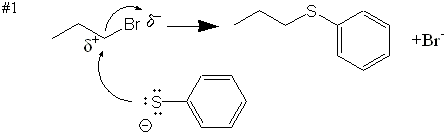
The reaction mechanism, shown below, should be duplicated as
best you can.
-
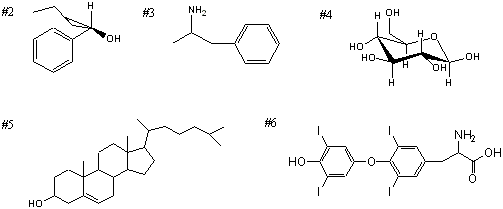
(R)-1-phenyl-1-butanol (shown
in the table below)
-
2-amino-1-phenylpropane (shown
in the table below)
- β-D-glucose
(as six-membered ring structure; this structure must be drawn in
one step) (shown
in the table below)
-
cholesterol (shown
in the table below)
-
thyroxine (no charges on any ionizable groups) (shown
in the table below)
/li>
ChemDraw,
Part IIIB
After
you have done the exercise above, and printed your copy (one printed
the sheet for each group), do the following exercise on another ChemDraw
page.
Using
the appropriate drawing tool, show each of the following structures on
this new page:
-
benzene ring
- pentadiene
ring
- 18-membered
ring (alkane; maintain bond angles)
- 8-membered
ring with alternating double bonds
|
-
AMP
- α-D-glucose
ring structure
- Any
polyhedral shape
- A
stereo structure with either 6, 7 or 8 positions
|
Part
IV: Chem3D
For any two of the structures that you drew in Part IIIA and any two
from Part IIIB, show Chem3D perspectives that are visually satisfying
to you, trying to make certain that any functional groups are apparent.
You can best represent your drawings using stick or ball-and-stick
representations.
Extra
Credit:
Draw the structure of the amino acid L-glutamic
acid in both ChemDraw and in Chem3D.
1Simplied
ChemDraw instructions
- When
you start a compound, you must start with a bond, not a single atom.
For example, you cannot start a structure by putting a text
element, such as "C" (which represents carbon). If you want
to have a molecule, such as bromochlorofluoromethane, you must first
draw the bonds to the carbon atom as bonds, and then label all the
atoms afterward.
-
You must also be certain to make all atoms connected, not just drawn
close to each other. Unless you see the little black square
box appear, any bonds or text will not be attached.
- You
can use the lariat button to select the object you wish to move within
the ChemDraw window. You should also label each of your samples using
the text tool. After the text has been added, you can move the text box
around the window in similar fashion to structures.
- Experiment
with the drawing tools on the left of the drawing window. You may find
some previously drawing structures that allow you to reduce the time
required to draw many structures. Experiment, experiment, experiment to
find easier ways to use the program.
2Simplied
Chem3D instructions
- You
can draw simple hydrocarbons directly in Chem3D, but this usually is
less convenient. You should experiment doing this by making a compound,
using the drawing tools in Chem3D to draw the following compounds:
- ethane,
ethene, and ethyne
- propyne
- isobutane
- The
best way to transport structures from ChemDraw to Chem3D is to draw the
structure in ChemDraw. Then, using the lariat function select the
structure you wish to have copied to Chem3D. Go the the Chem3D window
and paste that object into Chem3D. Once it is in Chem3D, you can rotate
it by first clicking on the rotate button, and then, holding the mouse
button down, move the mouse pointer around the Chem3D window, and see
the object rotate. Obtain a visually appealing appearance for your
object.
- To
copy an image from Chem3D, do the following:
- Choose
select all (this makes sure that every atom is copied)
- Go
to the ChemDraw program
- Select
the paste function
- Select
the object you just copied, and reduce its size
- Move
the object to where you want it within the ChemDraw page
- Label
the object
- To
change the appearance of your object in Chem3D, go to [View]/[Preferences]
and make the selections you want. For example, you can view your object
in [Ball and Stick]
perspective, or [Stick
perspective], or [Space
filling] perspective. After
you select a new way to view your object, simply close the pop-up
window, do NOT
save your new preferences. You will now be able to view your object in
the perspective you desire. If you save it, all objects will
automatically be loaded in the new perspective format.
- You
can also change [Atom
Color] and [Atom
Fill] options.
3How to do symbols in ChemDraw
- Select [Font] option box.
- Click mouse anyplace in the open document.
- Select [Text] [Font] [Symbol] in dropdown menu.
- Type "d" (no quotation marks) in the open Text box, and the
"d" symbol will appear.
- Type a regular "+" or "-" character after the "d"
symbol to get: "d+"
- Then, using the back arrow, highlight the "+" character.
- Select [Text] [Style] [Superscript].
- It should look like this: d+.
Copyright © Dr. Donald L. Robertson (Modified:
11/14/2012)